
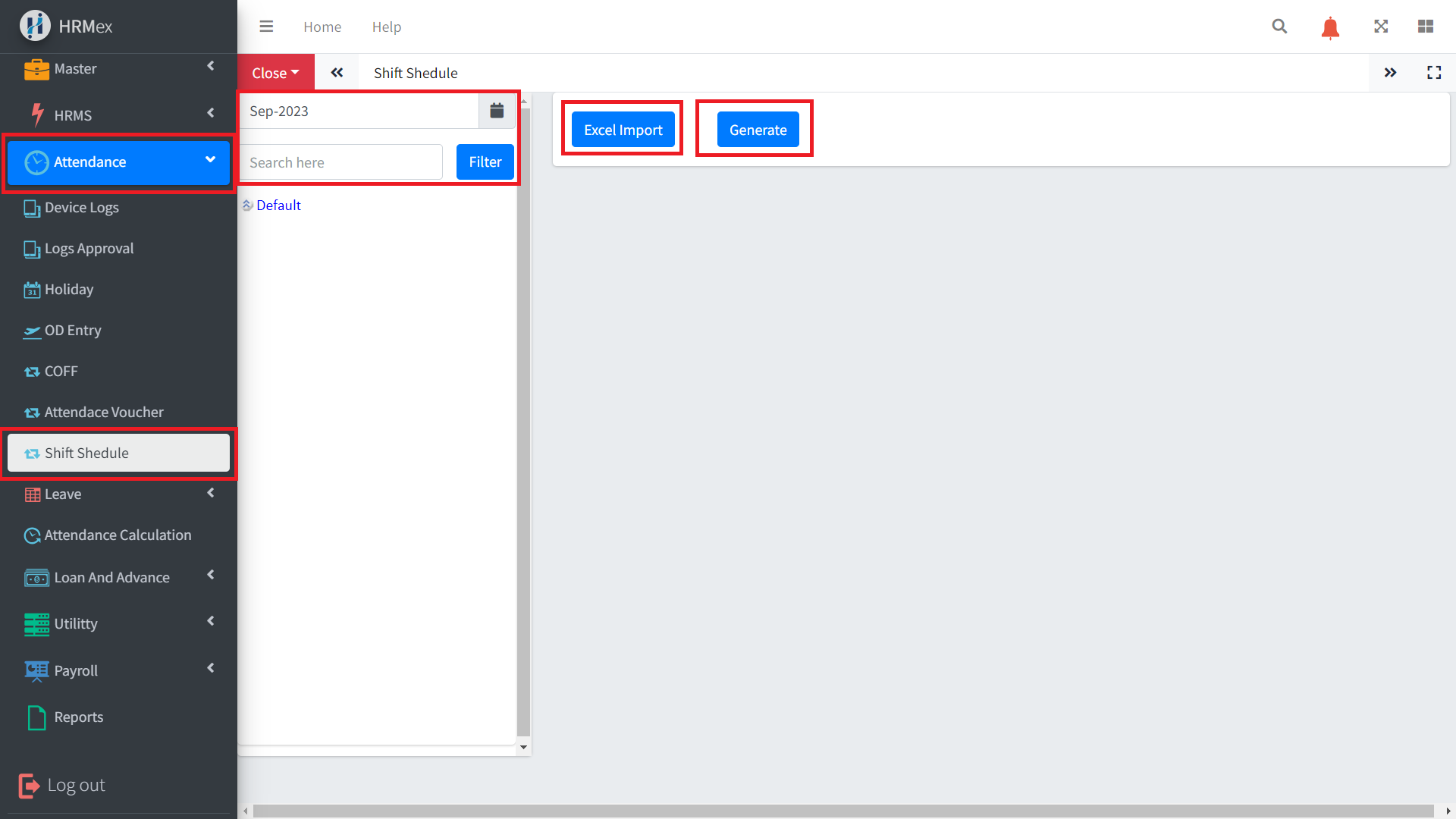
The Shift Schedule feature in HRMex Time Attendance Software provides a convenient and efficient way to manage employee shift schedules. This feature enables HR administrators and managers to create, view, and make changes to shift schedules for individual employees or groups. You can access the Shift Schedule section from the Attendance Navigation menu.
Accessing the Shift Schedule Section
Log in to HRMex: Start by logging in to the HRMex Time Attendance Software using your credentials.
Navigate to Shift Schedule: Access the Shift Schedule feature from the Attendance Navigation menu.
Selecting Attendance Month and Employee
In the Shift Schedule section, you can perform various actions:
Select Attendance Month: Choose the specific month for which you want to view or modify shift schedules.
Expand Location Hierarchy: Navigate through the location hierarchy by expanding Location > Company > Unit > Department to access employee data.
Search Employee: Alternatively, you can search for an employee by entering their employee code or name in the search box.
Viewing Full Month Shift Schedule
After selecting the desired employee or location hierarchy, you can view the full month's shift schedule for the chosen employee. The shift schedule typically includes the following details:
Date: The date for each day of the month.
Shift: The assigned work shift for that day.
Action Column: This column provides options for making changes to the shift schedule.
Importing Multiple Employee Shifts via Excel
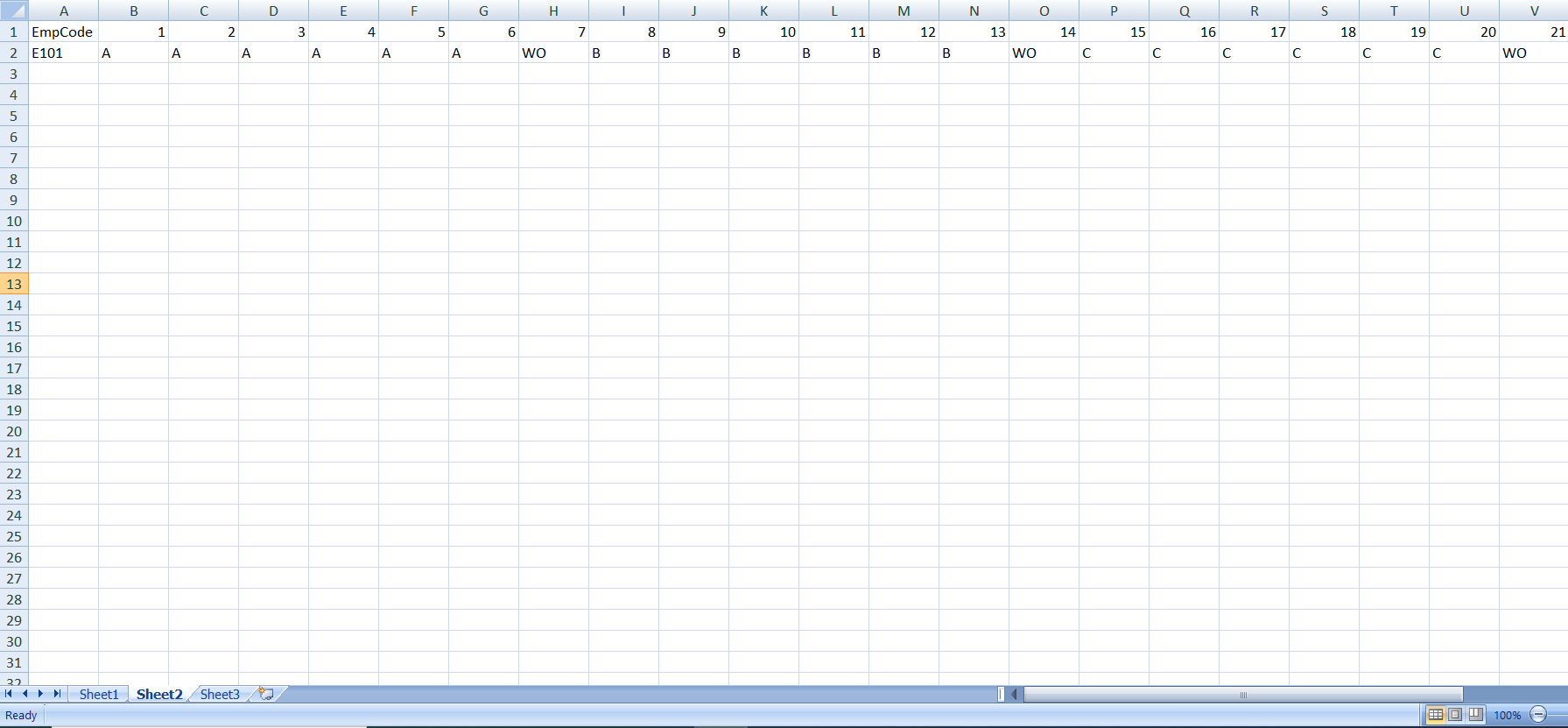
HR administrators can streamline the process of managing shifts for multiple employees by importing the shift schedule data via an Excel file. This feature allows for bulk import, making it efficient and accurate.
Generating Single Employee Single Day Shift Schedule
In addition to viewing full month shift schedules, you can also generate a single day's shift schedule for an individual employee. This is useful when a specific change in an employee's schedule is required for a particular day.
Making Changes to Shifts
In the Action Column of the Shift Schedule, you can make various changes to an employee's shift, such as:
Change Shift: Modify the assigned shift for a specific day if needed.
View Full Month Shift Schedule: Access the full month's shift schedule to view and manage shift assignments.
View Change Shifts: Review and track changes made to shifts for the selected employee.
Benefits of Shift Schedule Management
The Shift Schedule Management feature in HRMex Time Attendance Software offers several advantages:
Efficiency: Simplifies the process of managing shift schedules, whether for a single employee or in bulk.
Accuracy: Ensures that employees' shifts are correctly assigned, reducing scheduling errors.
Customization: Provides flexibility to make changes to shifts as needed to accommodate employee preferences or business requirements.
Transparency: Offers transparency in shift schedule management, documenting all changes made to shifts.
Conclusion
The Shift Schedule Management feature in HRMex Time Attendance Software streamlines the process of managing employee shift schedules. It provides a user-friendly interface to view, modify, and track shifts for individual employees or groups. Whether you need to view a full month's shift schedule or make specific changes to an employee's shift, this feature enhances efficiency, accuracy, and transparency in shift schedule management.