
The "Manual Attendance" feature, accessible from the Payroll menu in HRMex Time and Attendance software, is a versatile tool designed to facilitate the accurate management of employee attendance records. Users can manually input attendance data, import attendance from Excel spreadsheets, and filter and export manual attendance records.
Accessing Manual Attendance
- Log in: Start by logging into the HRMex Time and Attendance software using your credentials.
- Navigate to Payroll Menu: In the main menu, click on the "Payroll Menu" option.
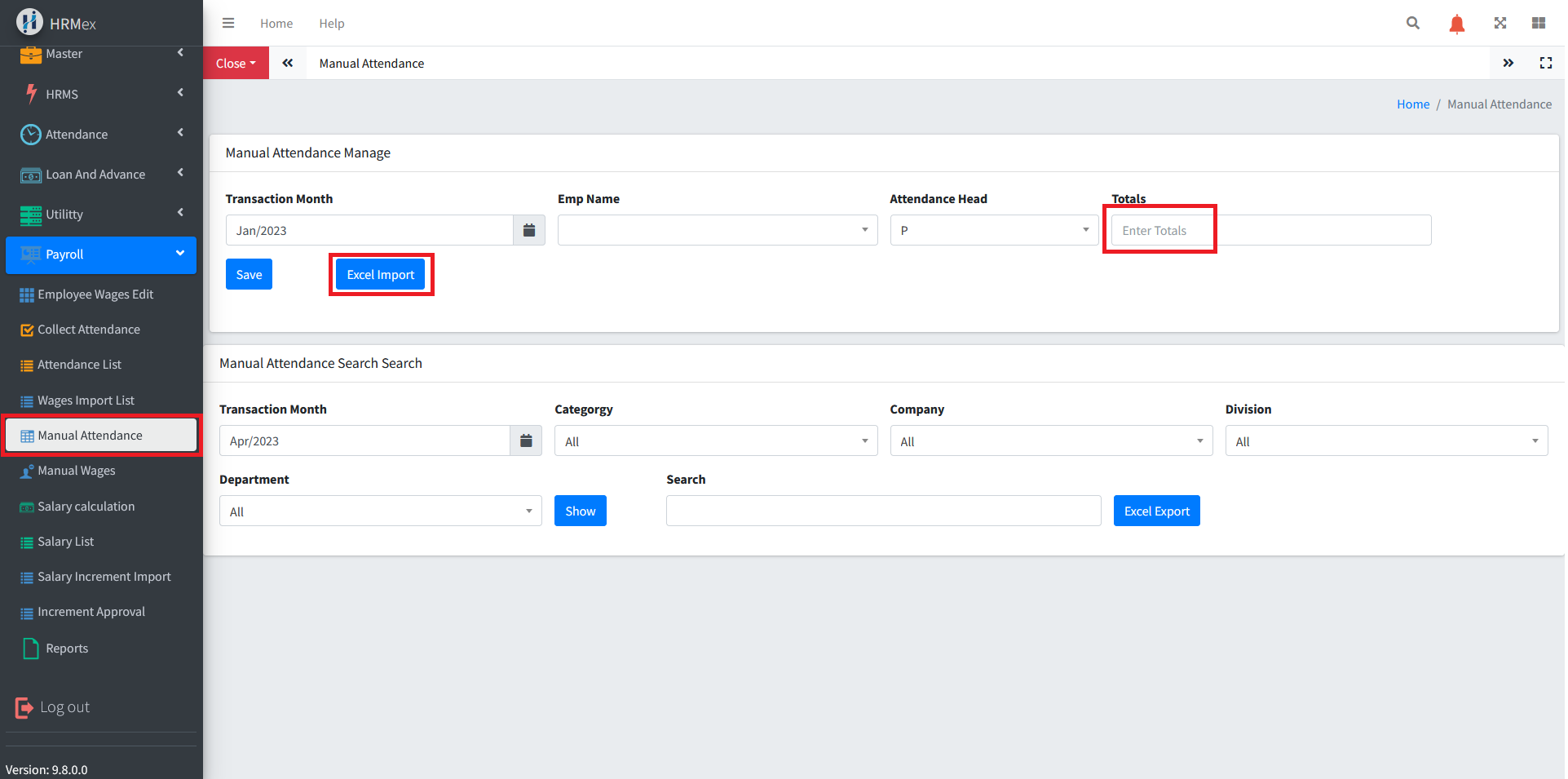
- Access Manual Attendance: Within the Payroll Menu, locate and select the "Manual Attendance" option. This opens the Manual Attendance interface.
Manual Attendance Input
The Manual Attendance interface provides options to manually input attendance data for specific employees. Here's how to use this feature:
- Select the Transaction Month: Choose the month for which you want to input or edit attendance data.
- Choose Employee Name: Select the employee for whom you wish to add or edit attendance records.
- Select Attendance Head: Pick the attendance head that corresponds to the type of attendance you want to input (e.g., 'Present,' 'Absent,' 'Late,' etc.).
- Enter Attendance Value: Specify the value to be added or removed from the employee's attendance (e.g., +1, -1, 0, etc.).
- Save Attendance: Click the "Save" button to store the manual attendance record for the selected employee.
Importing Attendance from Excel
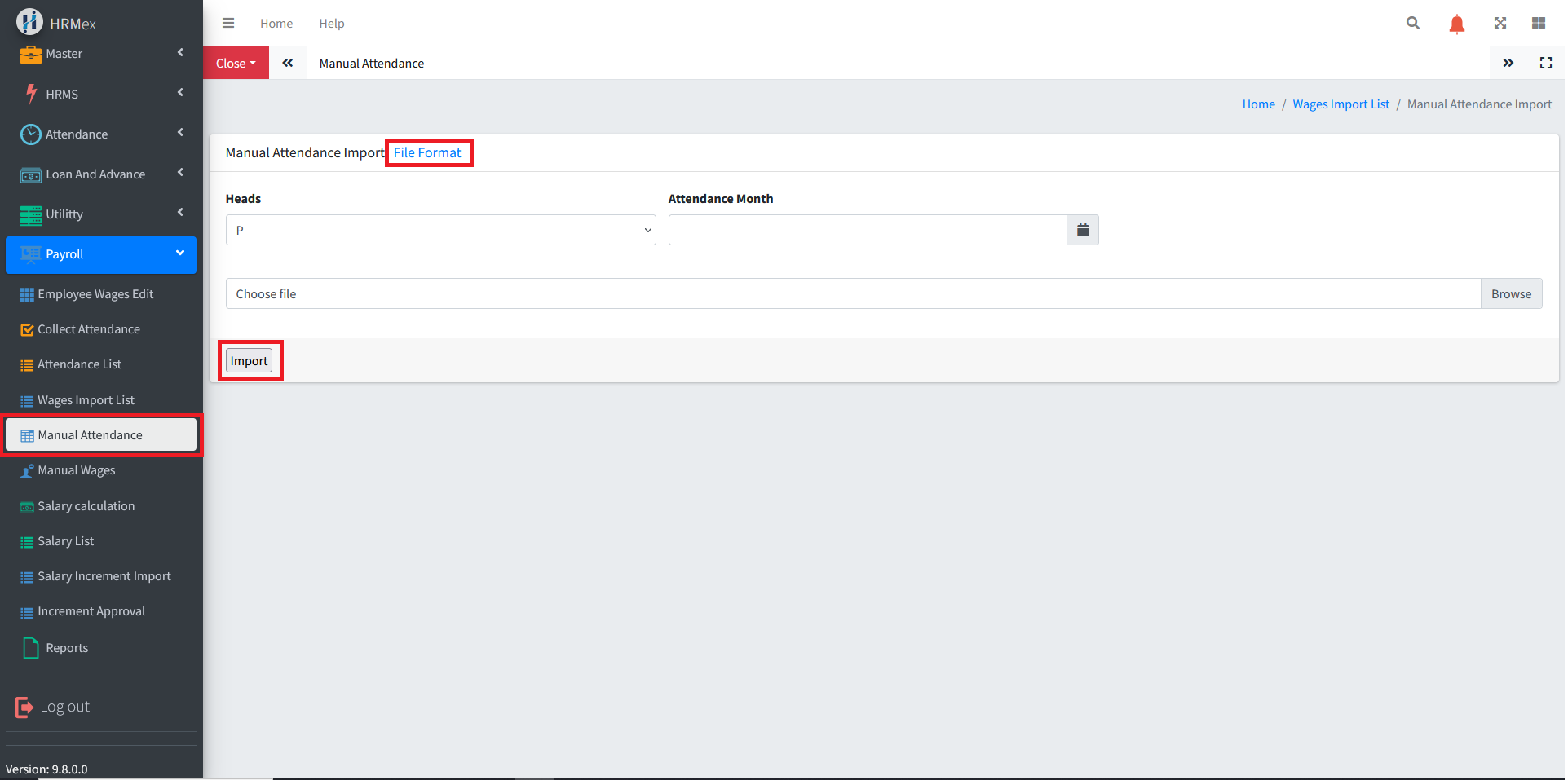
Users can easily import attendance data from Excel spreadsheets using the following steps:
- Select the Transaction Month: Choose the month to which the imported attendance data applies.
- Select Attendance Head: Pick the appropriate attendance head.
- Import Spreadsheet: Click the "Excel Import" button and select the Excel spreadsheet that contains the attendance data.
- Click "Import": After selecting the spreadsheet, click the "Import" button to complete the process. The software will import the data from the spreadsheet.
- File Format: The "File Format" button provides an example of the correct format for error-free data import. Following this format is essential for a successful import.
Checking Manual Attendance
To check if manual attendance has been recorded for an employee:
- Filter and Search: Below the manual attendance input, you can filter employees by month, category, company, division, and department. Then, click the "Show" button to see if filtered employees have any manual attendance records.
Exporting Manual Attendance
If needed, users can export manual attendance records to an Excel spreadsheet:
- Click "Excel Export": Next to the "Show" button, you'll find the "Excel Export" button. Click it to export all manual attendance records into an Excel spreadsheet.
Benefits of Manual Attendance
- Accurate Records: Maintain precise attendance records for payroll and HR purposes.
- Efficiency: Quickly input or update attendance data, whether for one employee or many.
- Data Integration: Easily import attendance data from external sources.
- Data Retrieval: Search for manual attendance records for specific employees.
- Reporting: Export manual attendance records for further analysis or record-keeping.
The "Manual Attendance" feature in HRMex Time and Attendance software simplifies attendance management, allowing users to input, import, filter, and export attendance data efficiently.