
The User Management feature in the HRMex Time and Attendance software allows administrators to manage user accounts, define their access permissions, and configure their roles within the system.
Accessing User Management
- Log in: Log in to the HRMex Time and Attendance software with your admin credentials.
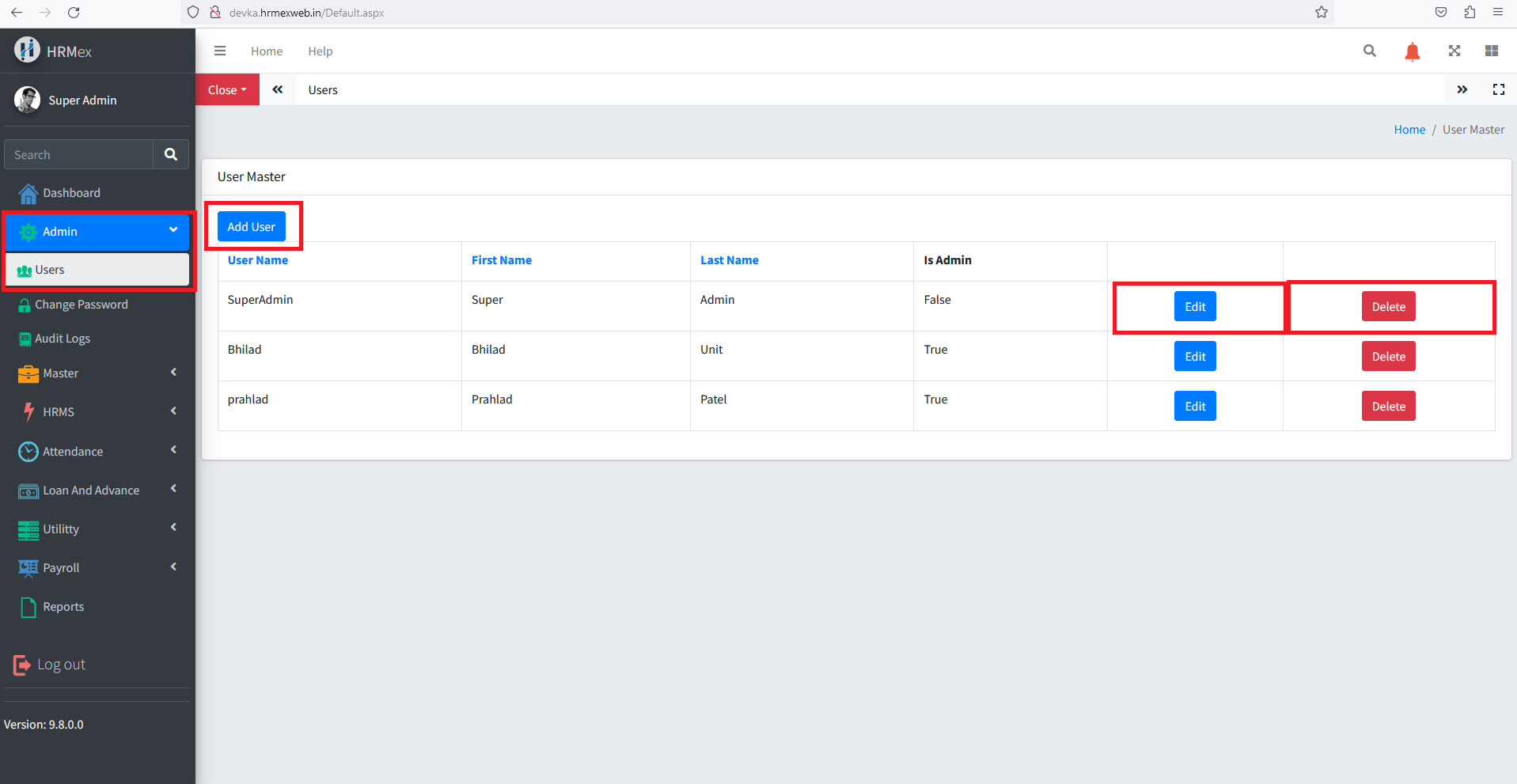
- Navigate to Admin Menu: In the main menu, click on the "Admin Menu" option.
- Access User Management: Within the Admin Menu, locate and select the "User Management" option.
Managing Users
Viewing Existing Users
Upon entering the User Management section, you'll see a list of already created users. Here, you can review their details, including username, first name, last name, user type, and more.
Adding a New User
- To add a new user: Click the "Add User" button.
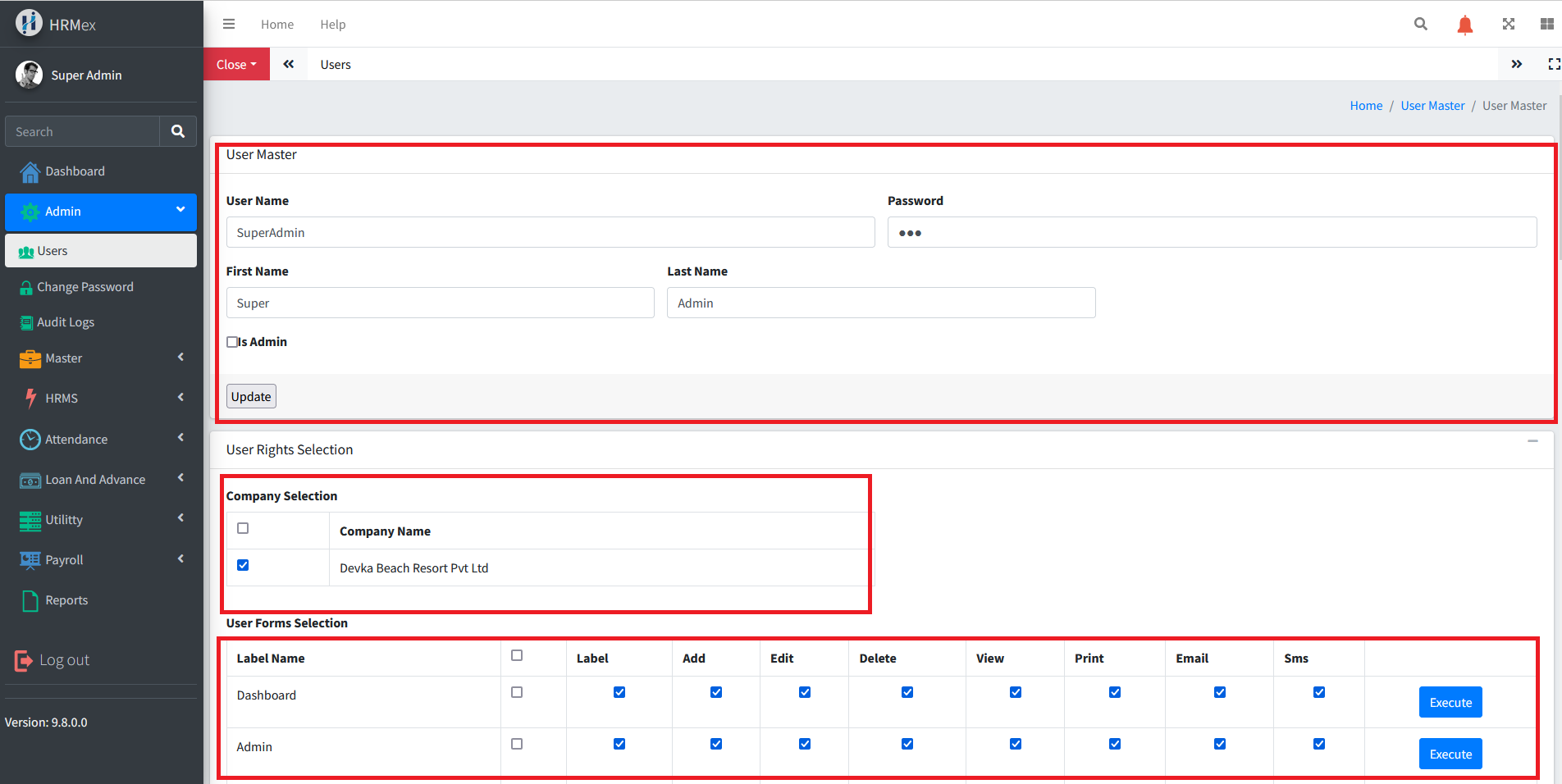
- Fill in User Details:
- User Name: Enter a unique username for the new user.
- First Name: Enter the user's first name.
- Last Name: Enter the user's last name.
- Password: Set a secure password for the user.
- User Type: Select the user type from available options.
- Is Admin: Check this box if the user should have administrative privileges.
- Save User: Click the "Save" button to create the new user.
Editing User Details
- To edit an existing user: Locate the user you wish to modify and click the "Edit" button.
- Make Changes: Modify the user's details as needed, such as changing their password, user type, or admin status.
- Save Changes: Click the "Save" button to save the changes.
Deleting a User
- To permanently delete a user: Locate the user you want to remove and click the "Delete" button.
- Confirm Deletion: A confirmation prompt will appear. Confirm the deletion if you wish to proceed.
Company and Permission Selection
After creating or editing a user, you may need to specify their access permissions and company affiliations.
- Company Access: Determine which company or departments the user can access.
- Form Access Permissions: Define the forms and functionalities the user can access within the system.
Additional Notes
- Ensure that user information is accurate and up-to-date.
- Regularly review and update user permissions to align with organizational requirements.
- Document any specific company policies or rules related to user management.
This knowledge base provides an overview of the User Management feature within the HRMex Time and Attendance software, helping administrators create, modify, and manage user accounts effectively.
This is a simplified example, and you should adapt it to match the specific functionality and user interface of your HRMex Time and Attendance software. Additionally, consider including screenshots, step-by-step instructions, and any other details relevant to your users.