
Accessing Master Permission from the Admin Menu
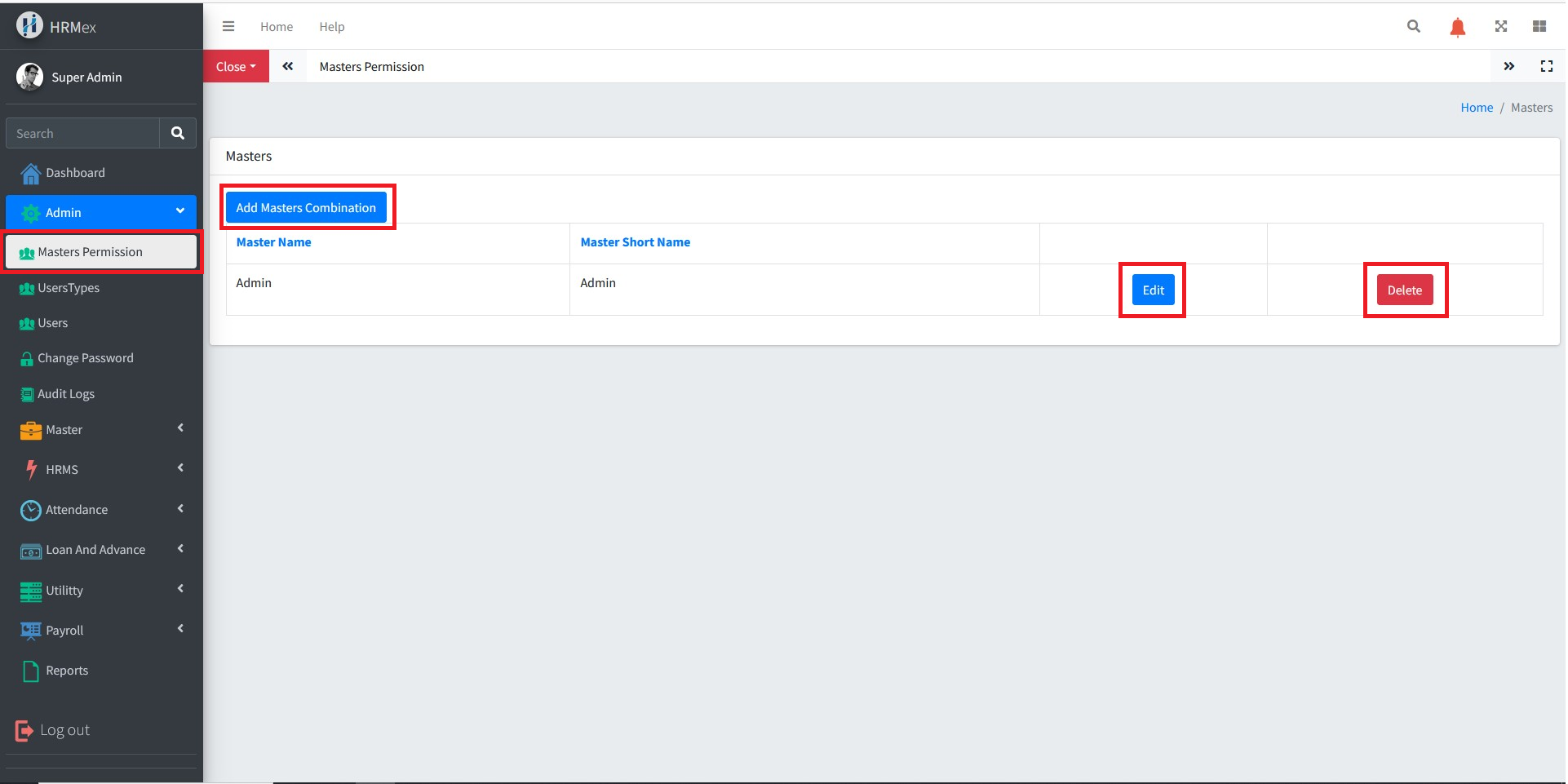
The Master Permission feature allows the admin to create a master for similar user types, enabling efficient management of user permissions.
Key Features
- Create a Master: Admins can create a master for specific user types, ensuring consistent permissions across similar users.
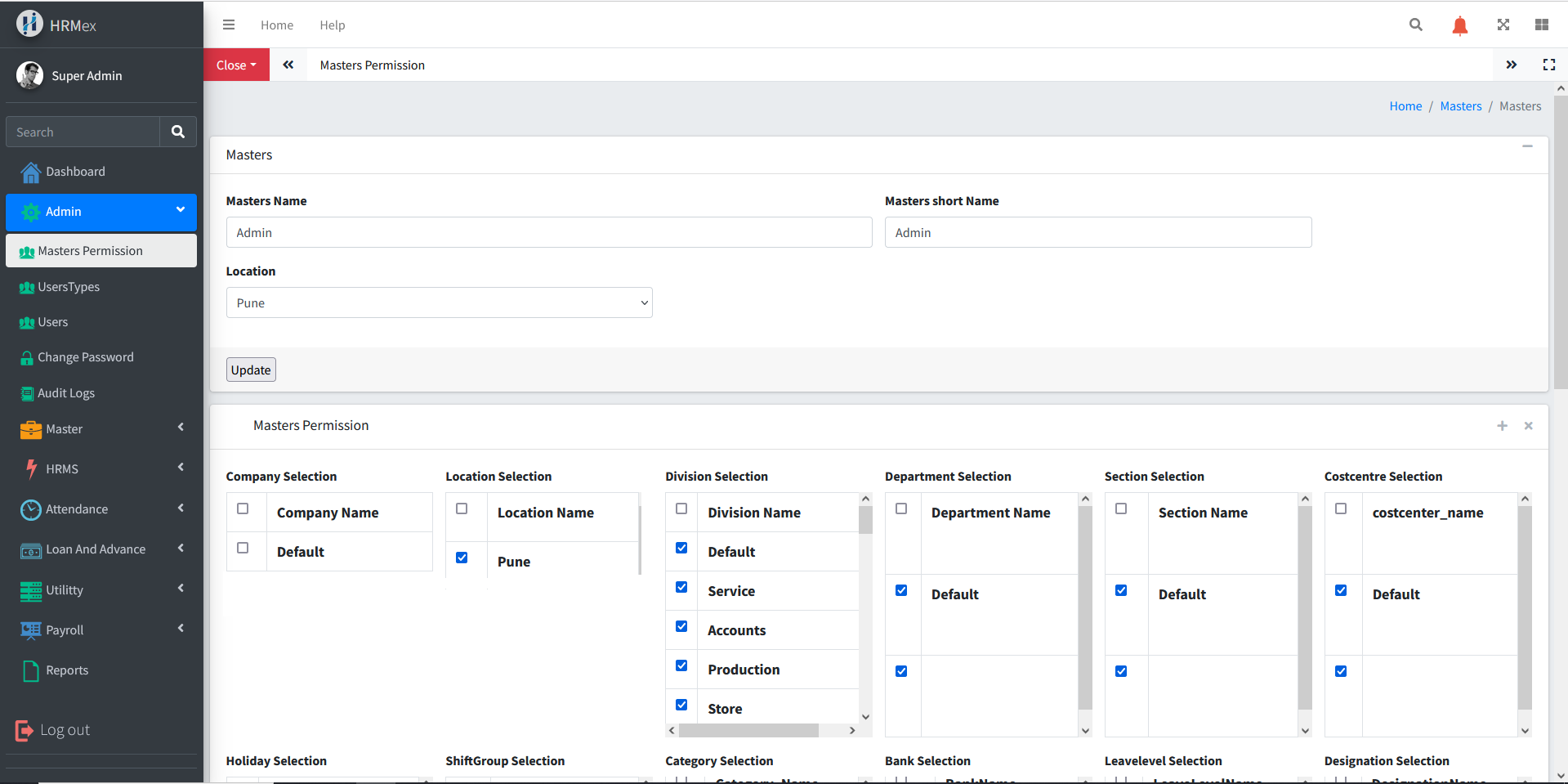
- Manage Permissions: Admins can select which data can be accessed by users and assign these permissions accordingly.
- Edit and Delete: Admins can modify permissions or delete the master if required.
Steps to Use Master Permission
Accessing Master Permission
- Navigate to the Admin Menu.
- Select Master Permission.
Creating a Master
- Click on the Add button.
- Fill in the required data to create the master.
- Save the master.
Managing Permissions
- All created or imported masters are displayed on the screen.
- Select the master for which you want to set permissions.
- Choose the data that can be accessed by the users.
- Assign the master to the appropriate users.
Editing Permissions
- Select the master you wish to edit.
- Click on the Edit button.
- Modify the permissions as needed.
- Save the changes.
Deleting a Master
- Select the master you wish to delete.
- Click on the Delete button.
- Confirm the deletion.
Benefits
- Efficient User Management: Streamlines the process of assigning permissions to similar user types.
- Flexibility: Allows admins to easily modify or delete permissions as needed.
- Security: Ensures that users only have access to the data they are permitted to see.
By following these steps, admins can effectively manage user permissions, ensuring that each user type has appropriate a