
The "Level Master" feature in HRMex Time and Attendance software, accessible from the "Master" menu, is a vital tool for managing the levels associated with employees. This feature allows users to add, edit, and delete level details, providing accurate information for employee classification.
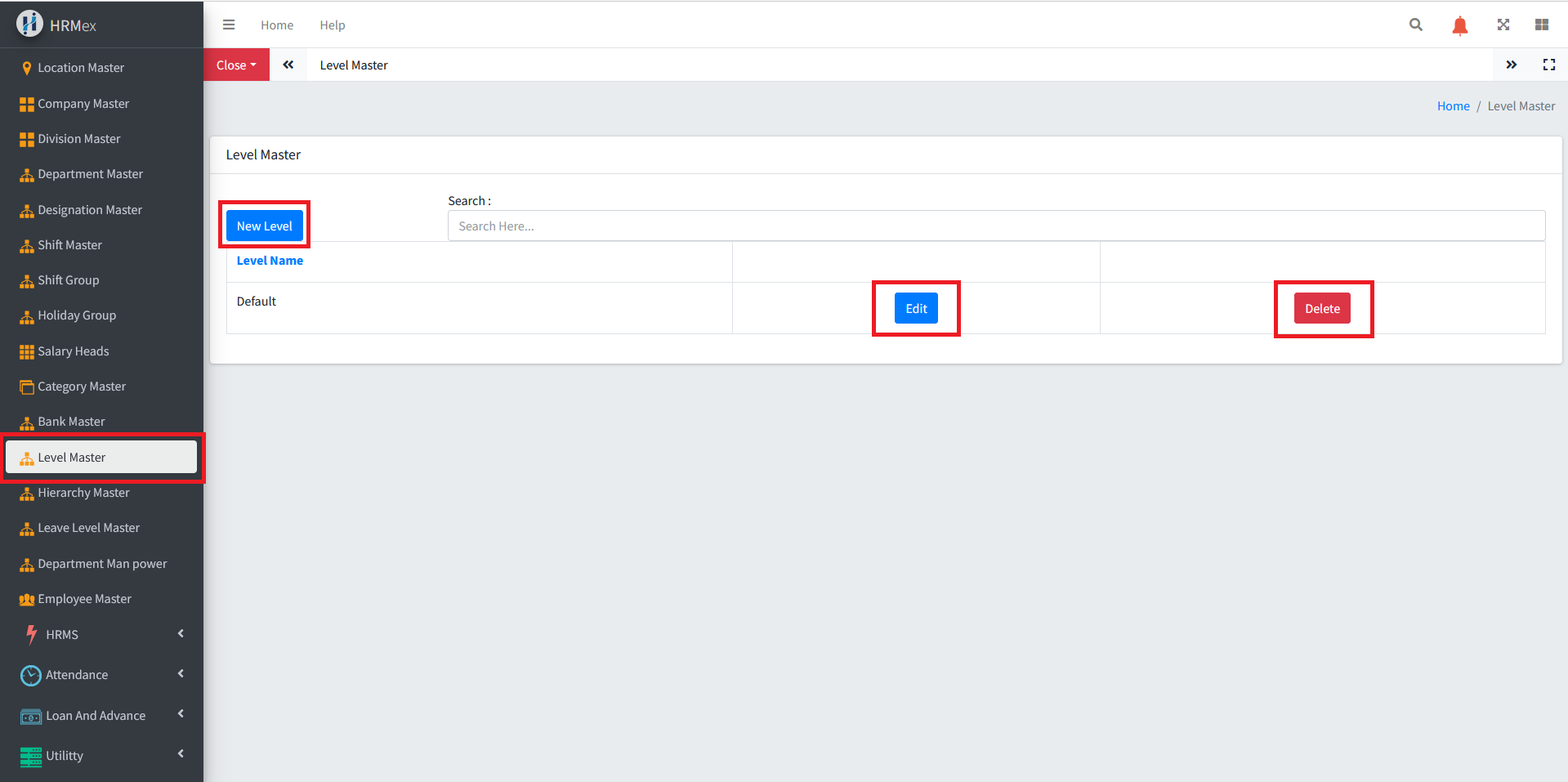
Accessing Level Master
- Log in: Begin by logging into the HRMex Time and Attendance software using your credentials.
- Navigate to Master Menu: In the main menu, click on the "Master" menu option.
- Access Level Master: Within the Master menu, locate and select the "Level Master" option. This opens the Level Master interface.
Managing Employee Levels
The Level Master interface provides the tools necessary for managing employee levels. Here's how to use this feature:
Add New Level: To add a new level, click the "New Level" button. Enter the level name, and save the entered information.
Edit Existing Level: To modify an existing level, select the level you wish to edit and use the "Edit" button. Make any necessary changes to the level's details, and ensure the updated information is accurate before saving.
Delete Level: If you need to remove a level from the records, use the "Delete" button. Select the level record to be deleted and confirm the deletion.
Benefits of Level Master
- Employee Classification: Manage and classify employees based on different levels for organizational purposes.
- Efficient Record-Keeping: Organize and manage level information for all employees in one central location.
- Dynamic Configuration: Add, edit, or delete level records as employee classifications change.
The "Level Master" feature in HRMex Time and Attendance software streamlines the management of employee levels, contributing to efficient employee classification within the organization.