
HRMex Time Attendance Software offers a comprehensive solution for managing employee time and attendance data. One of its key features is the Devicelogs section, which allows you to access and manage raw logs from various sources, including Bio Metric Devices, Mobile Punches with Selfies and GPS Locations, and the ability to manually add missed punches.
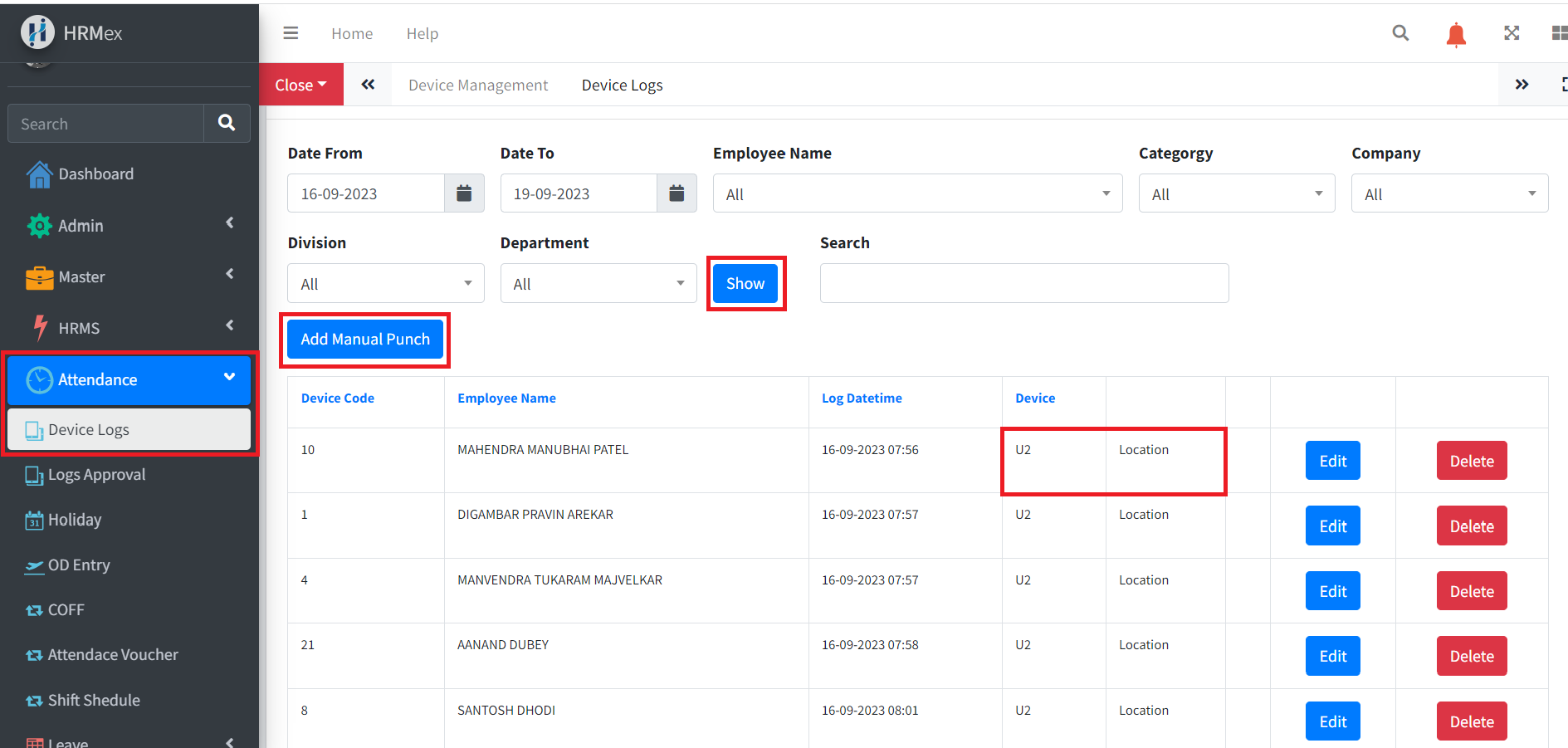
Accessing Devicelogs
- Log in to HRMex: Start by logging in to the HRMex Time Attendance Software with your credentials.
- Navigate to Devicelogs: Once logged in, you can access the Devicelogs section from the main dashboard or the navigation menu.
Raw Logs from Bio Metric Devices
In the Devicelogs section, you can view raw logs generated by Bio Metric Devices used for employee time tracking. These logs typically include:
- Employee Information: The employee's ID, name
- Timestamps: Date and time when the punch was made.
- Device Information: Details about the Bio Metric Device used for the punch (e.g., device name, location).
You can perform various actions on these logs, such as:
- Filtering: Filter logs by date, employee, or device to view specific records.
- Editing: Correct any discrepancies or errors in the logs if necessary.
- Approving: Verify and approve logs to ensure accuracy.
Mobile Punch with Selfie and GPS Location
HRMex Time Attendance Software allows employees to make mobile punches using their smartphones. These punches are accompanied by selfies and GPS location data to enhance security and accuracy.
Here's how it works:
Mobile Punch: Employees use the HRMex mobile app to clock in or out.
Selfie: The app captures a selfie as part of the punch to verify the employee's identity.
GPS Location: The app records the GPS coordinates of the punch location.
Administrators can review and manage mobile punches in the Divicelogs section. Actions you can take include:
- Viewing Punch Details: Access punch details, including the timestamp, selfie, and GPS location.
- Verifying Punches: Verify that the punch and associated data align with the employee's schedule and location.
- Resolving Discrepancies: If there are issues with a mobile punch, you can resolve them as needed.
Manually Adding Missed Punches
In cases where employees forget to punch in or out, HRMex Time Attendance Software provides the option to manually add missed punches:
Access the Devicelogs Section: Go to the Devicelogs section.
Add Manual Punch: Click on the "Add Manual Punch" option.
Select the Employee: Choose the employee for whom you want to add a missed punch.
Enter Details: Provide the date and time.
Save: Save the manually added punch to update the attendance records.
Manually added punches are useful for ensuring accurate attendance records even in cases where employees forget to use the time-tracking system.
Conclusion
The Devicelogs section in HRMex Time Attendance Software offers a centralized platform for managing raw logs from various sources, including Bio Metric Devices, Mobile Punches with Selfies and GPS Locations, and the ability to manually add missed punches. This feature enhances the accuracy and efficiency of your employee time and attendance management processes.